
About Your Access Card and Its QR Code

Your access card helps identify you at our branches and connects you to the Fulfillment system when you need to borrow company assets or products.
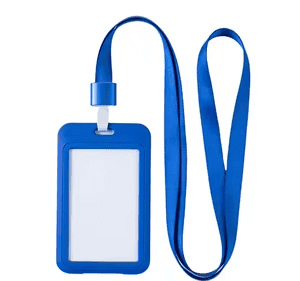
Get your card design
Your personal card design is available at valuefit.co.za/access-card-design.
If you do not have a suitable photo, please email a high-resolution image to staff@am.co.za. We will create a picture card for you.
At Sunnyrock HQ, access cards use RFID for access control. Other branches may not have an access-control system; in that case, you can use a suitable tag holder from a stationery shop and print your card design onto it using either UV flatbed direct printing or vinyl printing.
Always wear your tag
Please wear your tag while you are on site. It makes it easy to identify people in the space:
- Blue tag: staff member
- Red tag: student
- Black tag or no tag: client or visitor
Why your card has a QR code
The QR code on your card links to Fulfillment, our system for managing company assets and products.
Use the QR code when you need to borrow an asset or product. Scan it in the Fulfillment app and confirm that the name shown is yours.
- If another person’s name appears, please report it to staff@am.co.za.
- If the app says “Unknown barcode,” your card still needs to be initialized.
Initialize your QR code
- Open the Fulfillment app.
- Open the main menu and select Staff.
- Find your name in the staff list. (If your name is not listed, email staff@am.co.za before continuing.)
- Select your name.
- On the right-hand side, select the expand arrow (∨) to show your barcode list.
- If you cannot see the expand arrow, you do not have permission to manage this location. Please ask a warehouse colleague to assist.
- Select an existing barcode to open the barcode options
- Choose **Add

Open the main menu & select Staff.

Find your name in the staff list.
If your name is not listed, email staff@am.co.za before continuing.
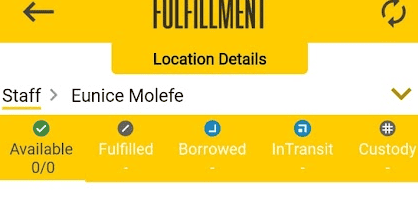
Then you can see this V button on right hand side, if you cannot see it, means you do not have permission for location operation, please ask a colleague that works at warehouse to help you.
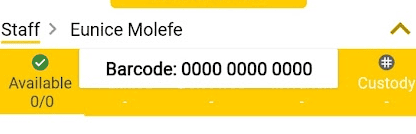
Once expand, you will see a list of barcodes which you can click
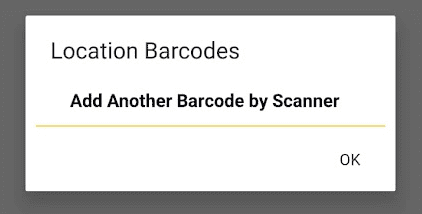
You can add the QR Code on your access card using the “Add” action.